A Twitch highlight serves two purposes:
- Condensing the broadcast for export to YouTube.
- Creating a permanent instance of the broadcast in Twitch to prevent expiration (14 days)
The following procedures outline the creation of a Twitch highlight.
- First fill out this form to request editor access to Twitch and YouTube.
- Reach out to Emily Harden and give her your twitch username, and she will give you access to create highlights on Twitch and upload videos on YouTube.
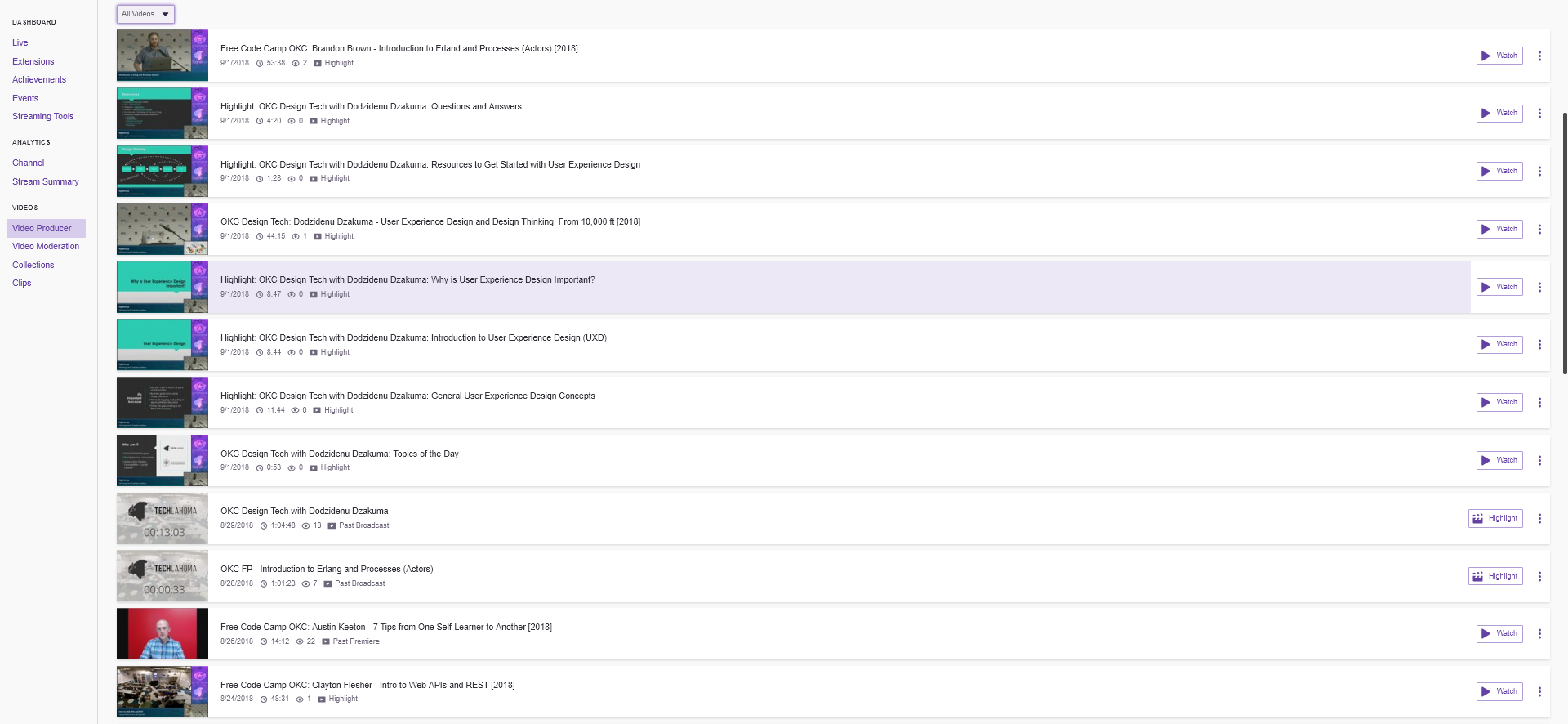
1. Go to the Video Producer for the Techlahoma channel.

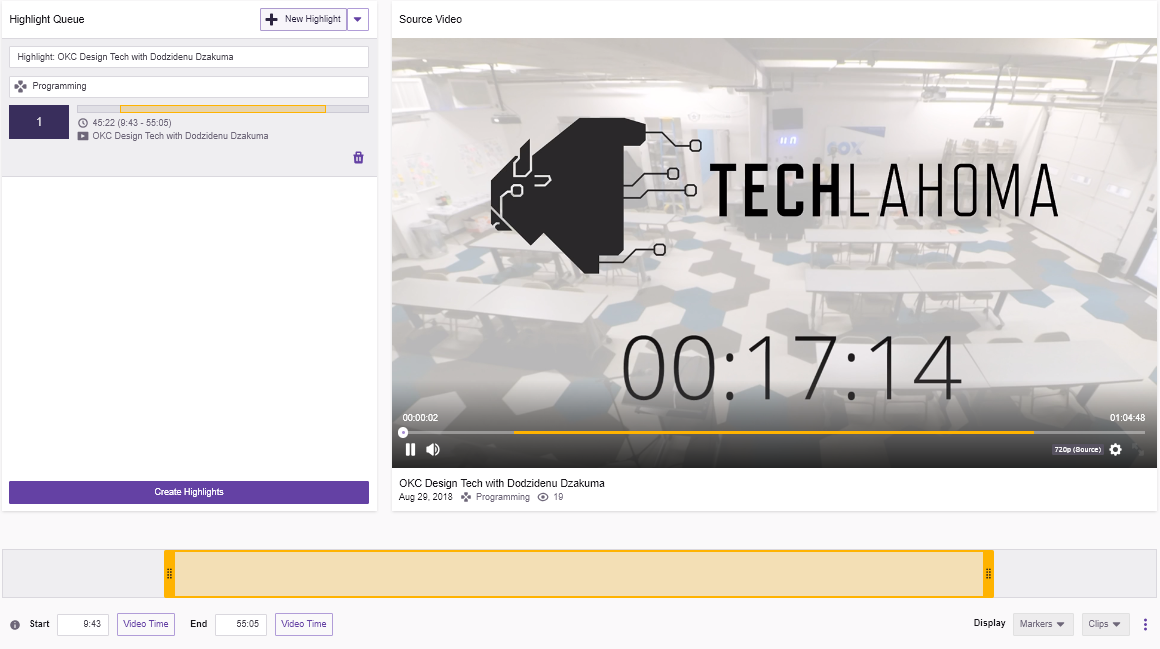
- Exclude the time before the talk (timer/countdown, leader introduction, announcements, etc).
- You can keep up to 20 seconds of "dead" time at the end of the video.
- Use your best judgment for any awkward time before the talk begins or during the Q&A.
- When in doubt, it's better to keep more content. We can always remove more later, but we can never add it back.
- After setting the timestamps, make sure the yellow preview bar updated correctly.
- Alternately you can pause the video at the desired start/end point and click the button next to the start/end timestamp fields to set
- Check the calculated total video length on the left-hand side.
 |
|---|
| Highlight Edit Panel |
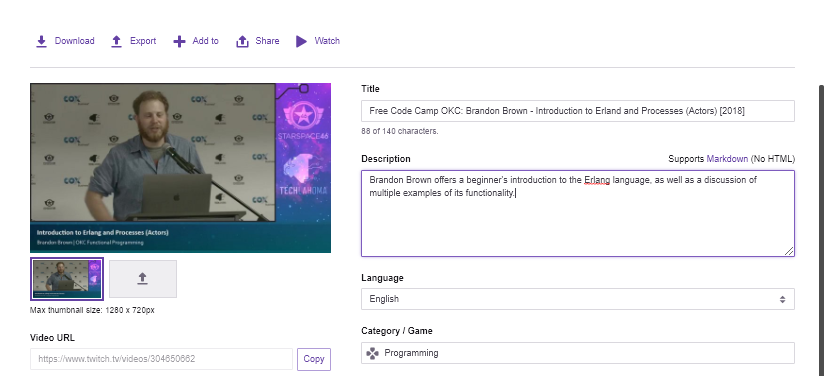
Talk Title - Speaker Name: Group Name
- Remove
Highlight:from the beginning of the title. - Use the conference or event name if the talk is not for a specific group.
- The title must be less than 100 characters, or the export to YouTube will fail.
-
Try to find the event on Meetup.com and use any details provided there.
-
Otherwise, write a short summary or use
<Speaker Name> talks about <Talk Title>.
The highlight is now ready for export to YouTube.
1. Go to the Video Producer for the Techlahoma channel.
Techlahoma- The group's name
- The speaker's name
- A very clear keyword or set of keywords and phrases, separated by commas and without hashtags (spaces not required after commas), describing the content and how it would be searched. (
Bootstrap, Creating a Portfolio Site) - YouTube allows a maximum of 500 characters for Tags, including separators (
,or|) and each tag can be a maximum of 30 characters.
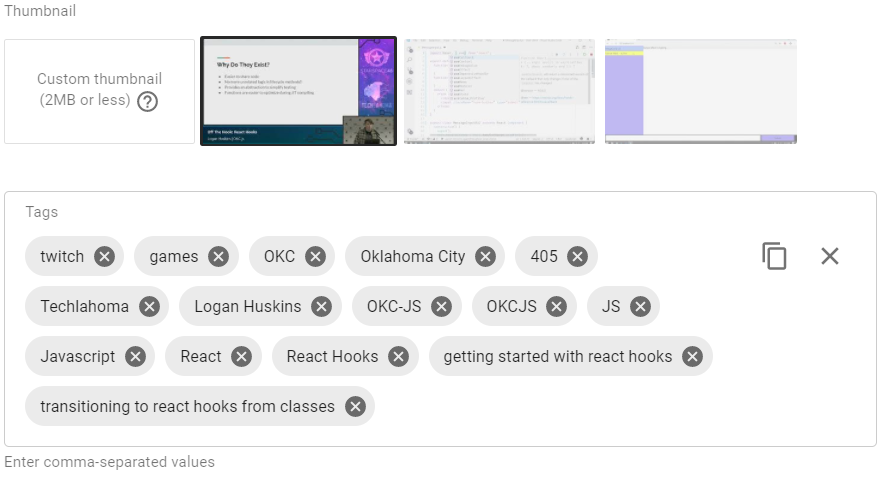
6. Click Start Export. This process can take a while. You can view the upload status if you have access to the techlahoma YouTube channel.
If you have access to Techlahoma's YouTube channel:
- Set the thumbnail.
- Add the video to the relevant playlists (group, lightning talks, etc).
- Change category from
GamingtoScience & Technology
- Consider messaging the speaker in Slack to send them a link to the video on YouTube and to thank them for speaking.
- If you have a Twitter account or access to the Twitter account for Techlahoma or the user group, consider tweeting a link and tagging the speaker.